
How to process Tapi work orders in ServiceM8
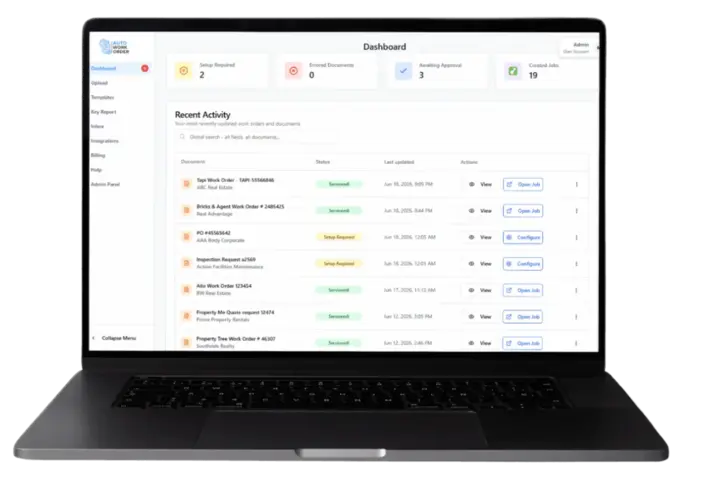
When a property manager sends a Tapi work order, the email can contain a link to the work order page. For a contractor using ServiceM8, the next task is getting that work and its relevant details into the job system.
Auto Work Order handles the linked workflow: it processes the link in the incoming email, opens the Tapi work order page, extracts attachments for further processing and creates the ServiceM8 job using your configuration.
This guide explains the workflow, how to configure the resulting job and what to check before enabling automatic processing. For the product overview, see Tapi work orders to ServiceM8.
Workflow overview
Why the link matters
The work order email is the starting point, but the work order information sits on the linked Tapi page. A process built around uploading a document is different from a process that follows that link.
Auto Work Order handles the email-link route. The resulting job follows the configuration you set, rather than requiring your team to re-enter the work order information into ServiceM8.
Before you start
Have your Auto Work Order account connected to ServiceM8 and a representative Tapi work order available for testing. Check the intake setup for your account and decide how the resulting ServiceM8 job should be organised.
Start with one work order. Review the property details, contacts, job description and any relevant attachment information before applying the same configuration to future work.
For the general submission steps, see sending documents to Auto Work Order. If your intake setup needs confirmation, test the actual source email with the team rather than assuming every format or attachment is handled identically.
The Tapi-to-ServiceM8 workflow
Send the incoming work order email into your workflow
Use the configured intake route for your Auto Work Order account. The system processes the Tapi work order link in that email. You do not need to start by manually turning the linked work order into an uploaded PDF for this workflow.
Auto Work Order opens the work order page
The system follows the link and opens the Tapi work order page to process the work order. This is the key distinction from working only with a PDF already attached to the original email.
Attachments are extracted for further processing
Auto Work Order extracts attachments from the work order page for further processing. Check the relevant information when you review the result. The workflow does not imply that every possible attachment format is supported.
A configured job is created in ServiceM8
The job is created according to your required configuration. Your template determines how extracted details are mapped into the job. Keep approval enabled while testing, or use automatic processing when your template is ready.
Configure the job your team needs
Auto Work Order's document templates are tied to a client or document type. Configure the ServiceM8 fields so the job description and other information appear where your team expects them.
You can map extracted details into fields and add your own headings or labels to the job description. Use the configuration preview to check the result before syncing the first job.
A simple review checklist is:
- The property address and work order reference match the source.
- The job description captures the scope of work.
- Contact and company information are mapped appropriately.
- Relevant attachment information has been reviewed.
- The resulting ServiceM8 job matches your intended configuration.
For the full setup, see document templates and approvals.
Choose review or automatic processing
Leave Auto Process off when you want a person to review each document before the job is created. Once the configuration has been checked, you can enable Auto Process for matching future work orders.
Review is especially useful during initial setup or when the source format changes. Automatic processing is a configuration choice; it is not a promise that every document will arrive complete or without errors.
What to check when a work order needs attention
Setup required
The document has no matching template. Configure the template and preview the resulting job before approving.
Awaiting approval
The data has been extracted and is waiting for review. Compare it with the source before syncing.
Errors or duplicates
Read the document's error message and resolve the specific issue. Duplicate documents also appear in this workflow; do not assume resending the email will fix the problem.
A changed or unexpected format
Check the extracted fields and template against a fresh example. Ask the team to review the intake route or mapping if the result differs from what you need.
Does this replace Tapi?
No. Tapi remains the source of the property manager's work order. Auto Work Order processes incoming work order information into the contractor's ServiceM8 workflow.
This article describes job intake and creation. It does not promise updates, completion notifications or invoices will sync back into Tapi.
Test the workflow with your own work order
The useful test is a representative source email and its linked work order, followed through to the configured ServiceM8 job. Check the extracted details, relevant attachments and field mapping before deciding whether to enable automatic processing.
For a guided walkthrough, book a demo and use an example suitable for sharing. Remove private tenant or customer details from any sample shared for demonstration.
Comparing plans? See pricing.