
Turn Tapi work order links into ServiceM8 jobs
Auto Work Order follows the work order link in your Tapi email, opens the work order page and extracts attachments for further processing. It then creates the ServiceM8 job using your required configuration.
Spend less time opening work order links and retyping the details. Keep a review step where your team needs it.
From a property manager's work order to your job list
When the work order arrives as a link in an email, the job information sits on the Tapi work order page. Your team still needs those details and relevant attachments in its ServiceM8 workflow.
Auto Work Order handles that linked workflow: it opens the Tapi work order page, extracts attachments for processing and creates the job according to your configuration.
Process the work order link
Start with the link in the Tapi email. Auto Work Order opens the linked work order page and extracts attachments for further processing.
Templates for each source
Configure how information from a particular client or document type appears in your jobs.
Review when you need it
Check extracted details before syncing, or enable automatic processing for a configured template.
How the work order becomes a ServiceM8 job
Receive the Tapi email
Send the incoming work order email into your Auto Work Order workflow. The system processes the work order link in that email.
Open the linked work order
Auto Work Order opens the Tapi work order page to process the work order information.
Extract attachments for processing
Attachments from the work order page are extracted for further processing. Use your configured template to organise the details your job needs.
Create the ServiceM8 job
Auto Work Order creates the job using your required configuration. Templates support review and approval, or automatic processing when enabled.
Keep the details organised before the job is created
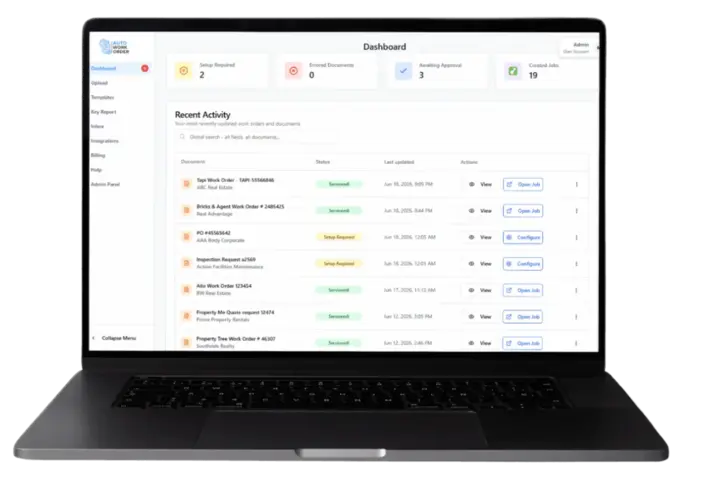
Review the property address, work order reference, scope of work and contact details in Auto Work Order. Configure the template so the information is placed where your ServiceM8 team expects to find it.
Documents that need setup, approval or attention have separate statuses. Duplicate documents appear in the error workflow so your team can investigate them.
Questions about Tapi work orders
See your Tapi work order link become a ServiceM8 job
Walk through the email link, work order page, attachment processing and resulting ServiceM8 job with our team. See how the configuration fits your business.