
Turn real estate work orders into ServiceM8 jobs
Receiving work from property managers using Tapi, PropertyMe, Property Tree or Ailo? Auto Work Order processes incoming work order information into ServiceM8 jobs using your configured templates.
Keep the work order source, field mapping and review process organised as you take on work from different agencies.
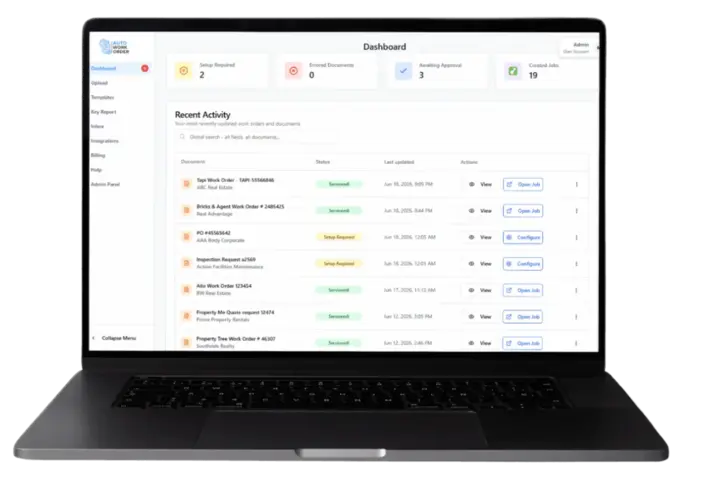
Different property managers. One job workflow.
Work orders from different agencies need to become usable jobs for your ServiceM8 team. The property address, scope of work, contacts and billing information need to reach the right fields.
Auto Work Order lets you configure templates for a client or document type, review extracted details and choose whether matching work orders require approval before job creation.
Configure the job details
Map extracted information into the ServiceM8 fields your team uses.
Keep review in your workflow
Check the source and extracted details before syncing, or enable automatic processing for a configured template.
Handle sources consistently
Use client or document-type templates to organise recurring work from different agencies.
Real estate work order sources
Auto Work Order supports work order processing from the following sources. The setup depends on how the work order arrives and the configuration your team needs.
Tapi
Auto Work Order follows the work order link in the Tapi email, opens the work order page, extracts attachments for further processing and creates the ServiceM8 job using your required configuration.
PropertyMe
Process work orders originating from PropertyMe into your ServiceM8 workflow. Use a representative work order to confirm the intake setup and field mapping your business needs.
Discuss your PropertyMe work ordersProperty Tree
Bring incoming Property Tree work orders into your configured ServiceM8 job workflow. Check the source details and the resulting job with your team's requirements in mind.
Discuss your Property Tree work ordersAilo
Process work orders originating from Ailo into ServiceM8 using a setup that fits how your work arrives. A demo with a representative example can confirm the configuration.
Discuss your Ailo work ordersFrom incoming work order to configured job
Confirm the intake route
Start with a representative work order and how it reaches your business. Confirm the supported intake setup for that source.
Configure your template
Map extracted information into your ServiceM8 fields. Add headings or labels where they help your team read the job.
Review the details
Check the property address, scope of work and relevant contact information before syncing the first job.
Choose ongoing processing
Keep approval enabled when review is needed, or use Auto Process for matching future work orders once the configuration is ready.
Start with a source your team already receives
Pick one property manager's work order and check the full path to ServiceM8. Once the job is configured correctly, use that process as the starting point for additional sources.
For linked Tapi work orders, see the practical guide covering the email link, work order page, attachment processing and job configuration in the Tapi workflow walkthrough.
Workflow overview
Questions about real estate work orders
Test a real estate work order with your ServiceM8 setup
See how the source information is processed, how the fields are mapped and what the resulting job looks like. Use an example suitable for sharing, with private customer and tenant details removed.